TAMRON
Lens
Utility™
TAMRON Lens Utility™
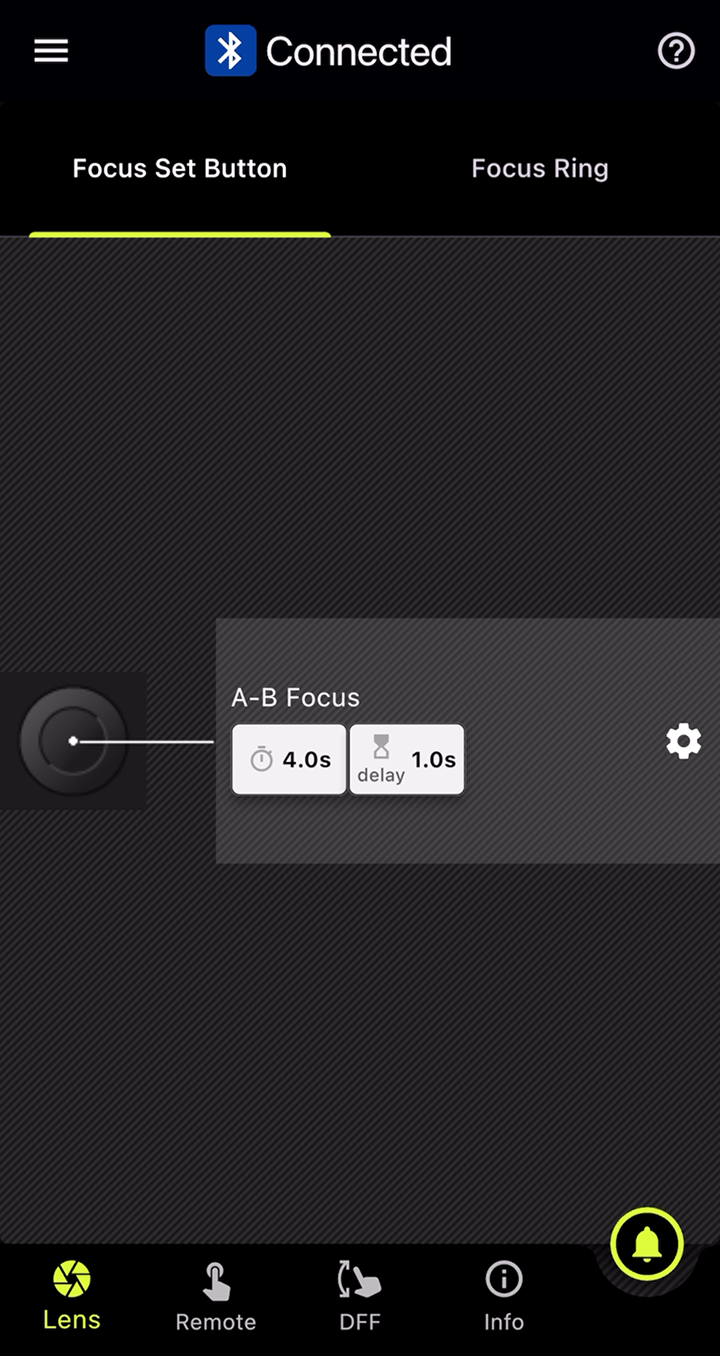
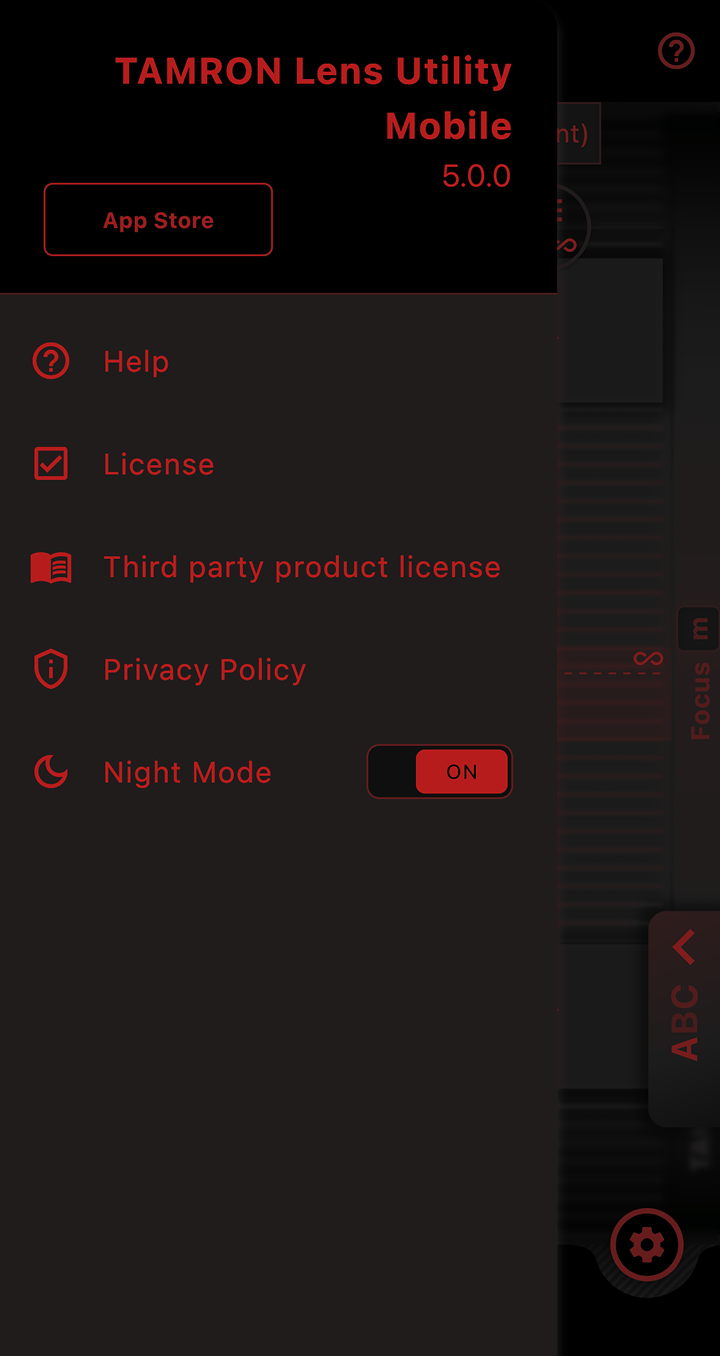
TAMRON Lens Utility™ is an innovative application that lets you assign practical functions to your lens for both video and still photography using your smartphone or PC, eliminating the need for traditional video equipment. Designed to be intuitive and easy to use, it enhances lens functionality and elevates your creative experience.
New Advancements and Possibilities for Your Shooting Workflow

For Video
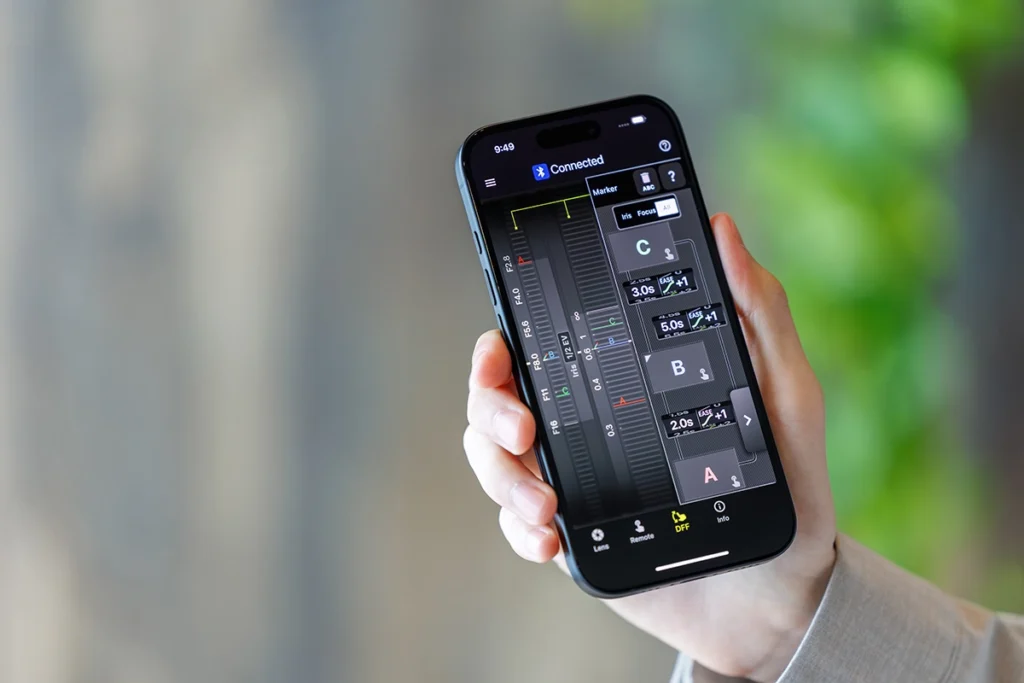
Focus (FC)/Iris Marker Link
Easily Control Focus Pull and Aperture from Your Smartphone
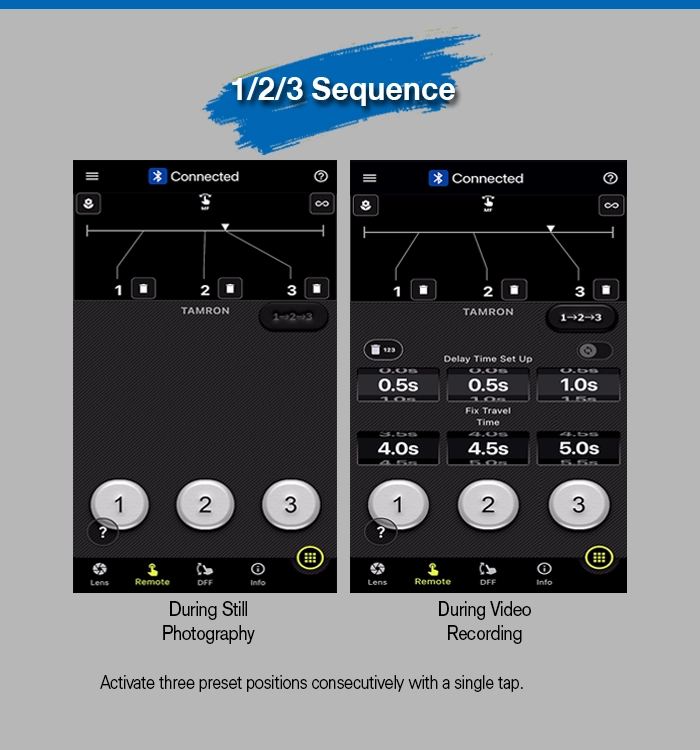
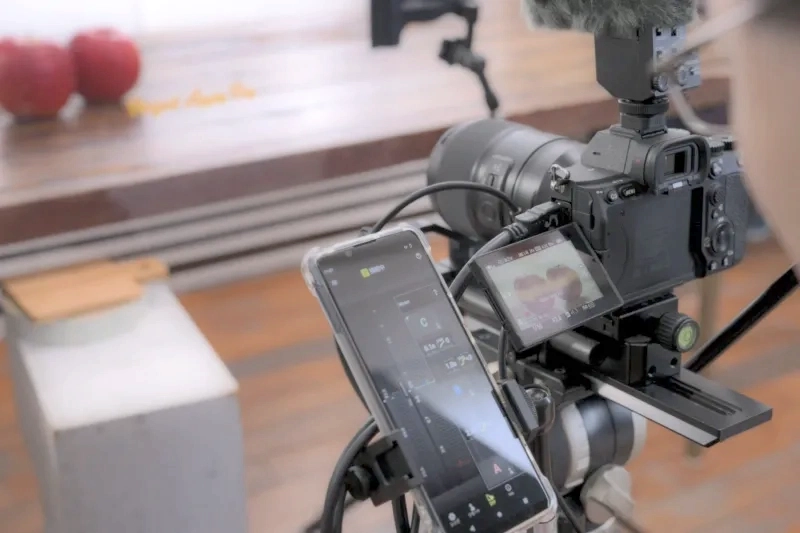
You can set markers for both the focus and aperture rings, and with the DFF (Digital Follow Focus) screen, shift them instantly to the preset positions with a single tap.
* Aperture control via the DFF including Iris Marker and Focus (FC)/Iris Marker Link is not supported on Nikon Z mount.
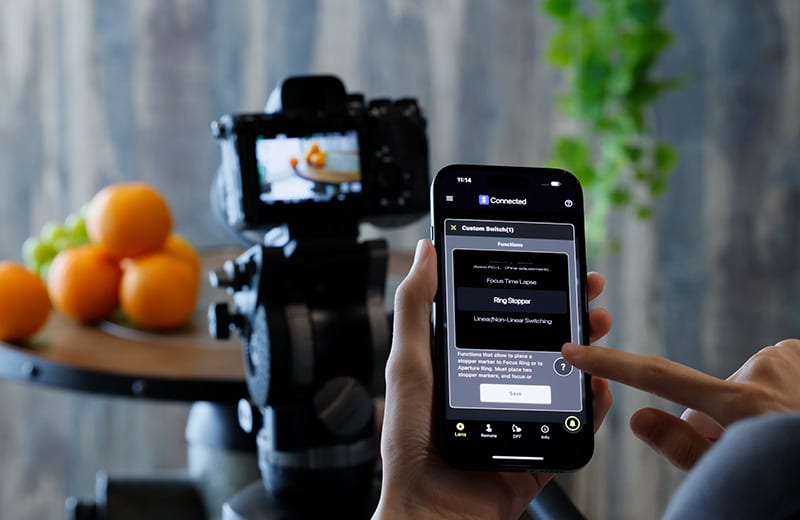
Ring Stopper
Electronically Controlled Stopper for Precise Ring Operation
This function lets you set an electronically controlled stopper for the focus and aperture rings, which helps prevent unintended over- or under-adjustment when operating them. With the DFF screen, you can manually control both rings at the same time with smooth, accurate operation.
* Nikon Z mount is not supported.
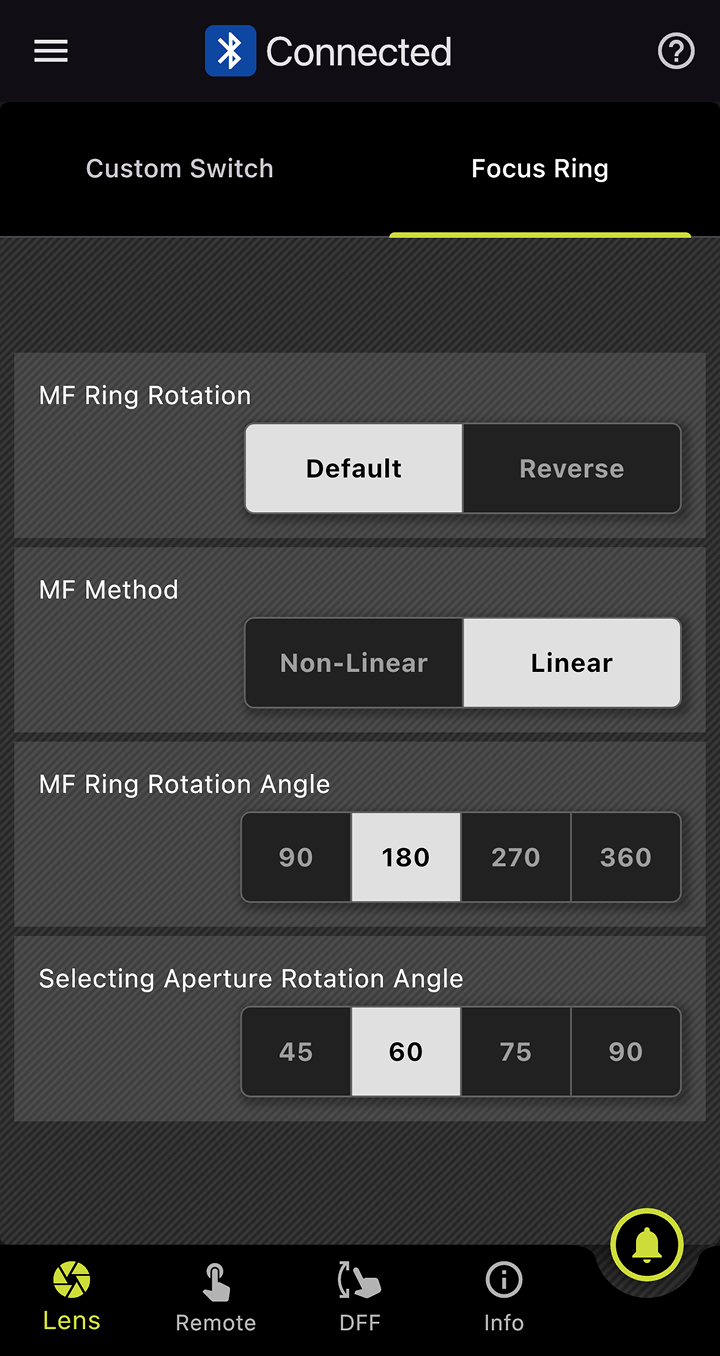
Selecting Focus and Aperture Rotation Angle
Adjust Ring Rotation Angle to Suit the Scene
This function lets you set the rotation angle of the focus and aperture rings. You can select the rotation angle according to the scene you are shooting in manual mode, allowing for operation that match your creative intentions.

For Time-Lapse
Focus Time Lapse
Add Focusing to Time-Lapse Shooting
This function works with the camera’s interval shooting, letting you create time-lapse videos while gradually shifting the focus position with ease.
* Nikon Z mount is not supported.

For Astrophotography
Astro FC-L (Fixed / Fine Adjustment)
Supports Focusing for Astrophotography
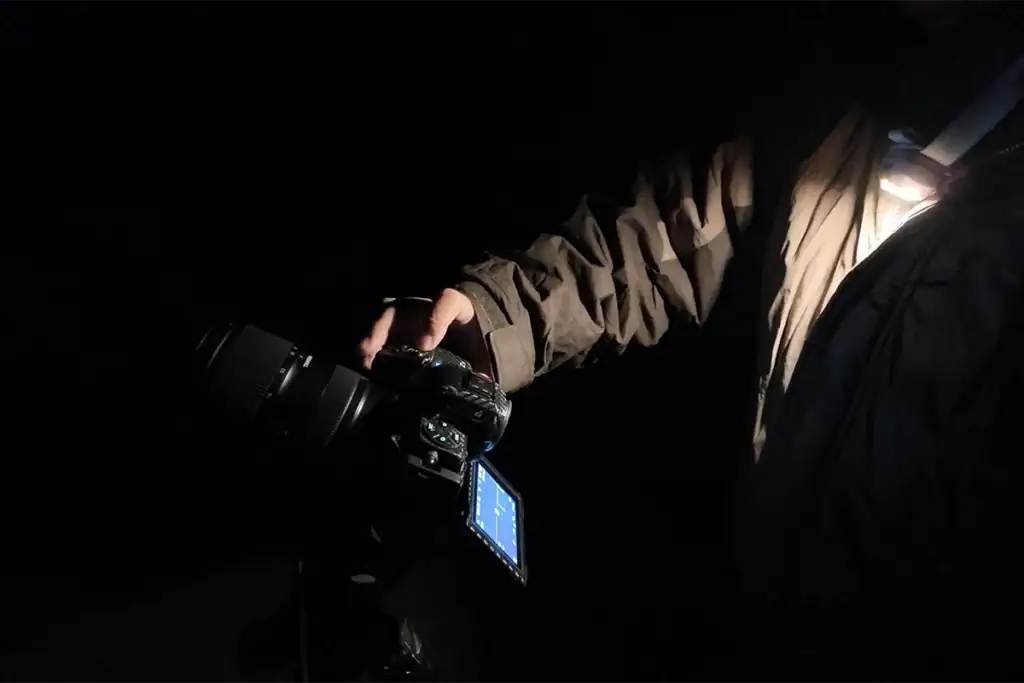
This function helps reduce the hassle of focusing when shooting the night sky. You can fine-tune and save focus positions to match your shooting environment and intentions.

For Still Photo
Focus Limiter
Limit the Focus Range to Avoid Missing Shots

This function lets you limit the focus range when shooting moving subjects.
- ● TAMRON’s unique features:
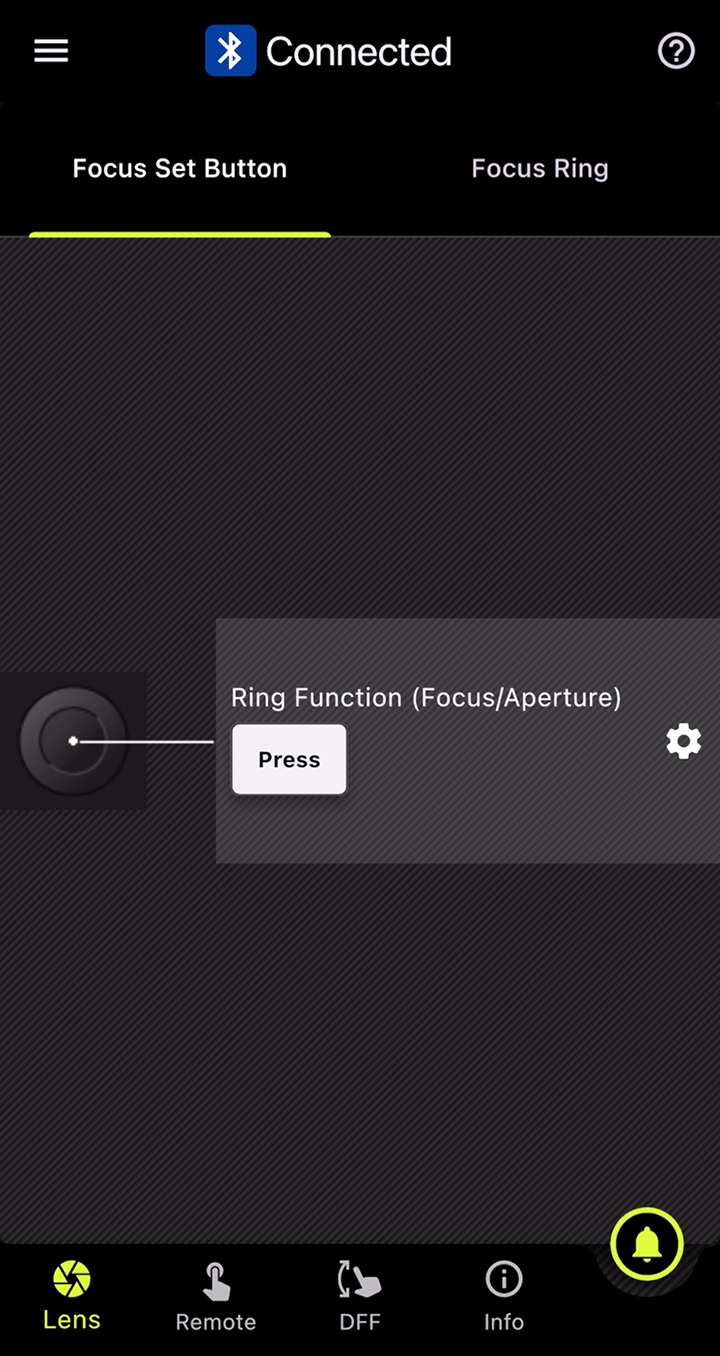
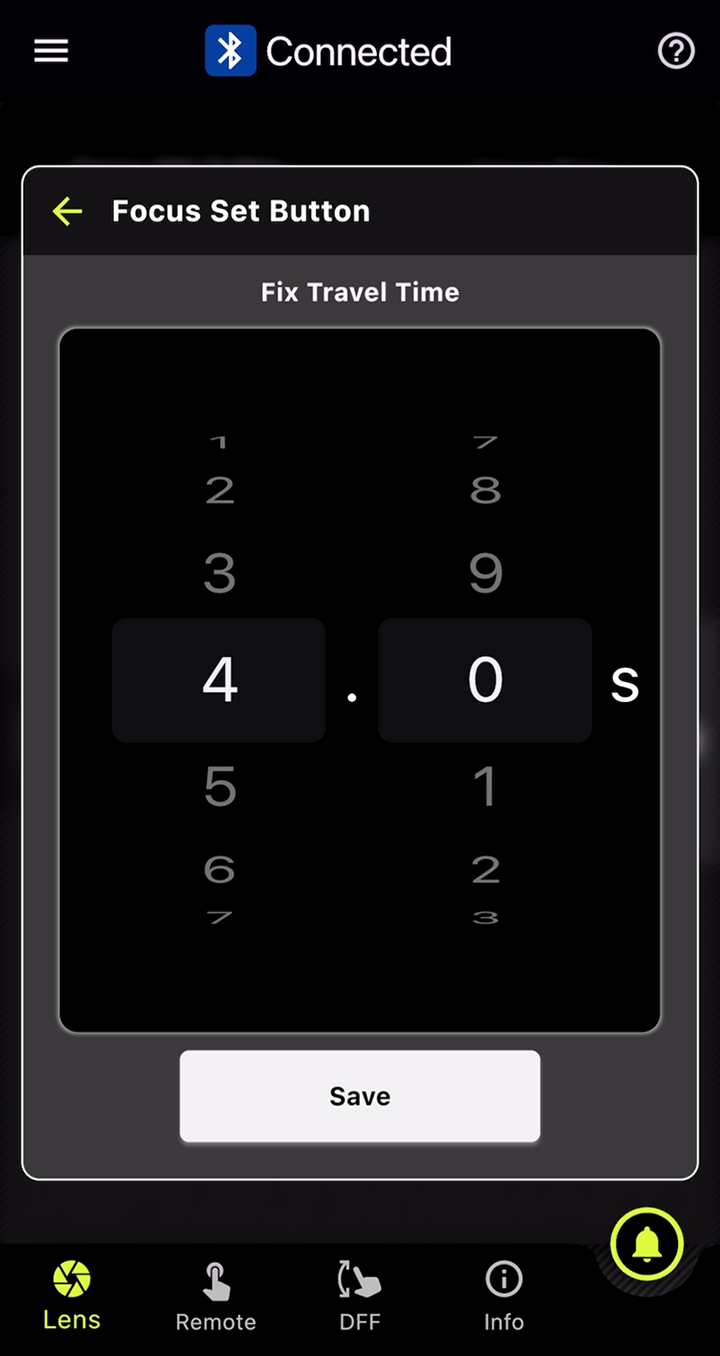
- Instantly switch between “Full” and “Limit” by pressing the Focus Set Button.
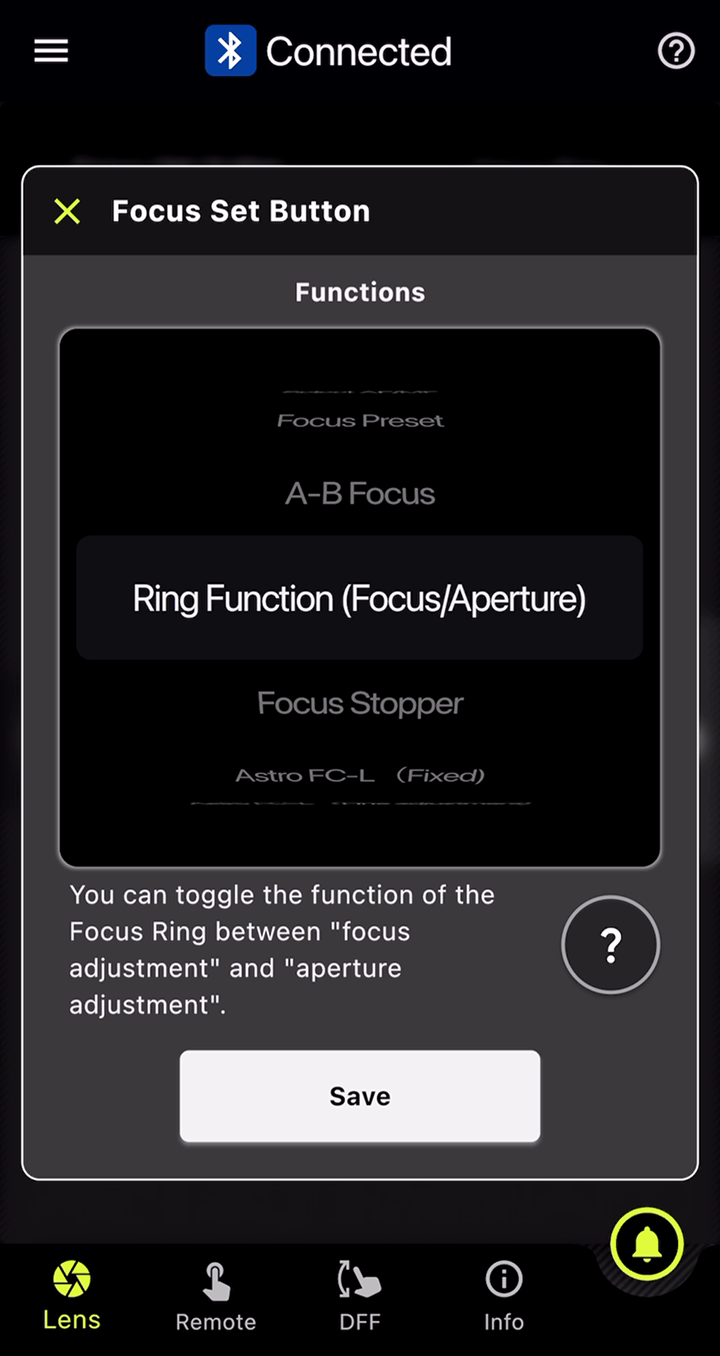
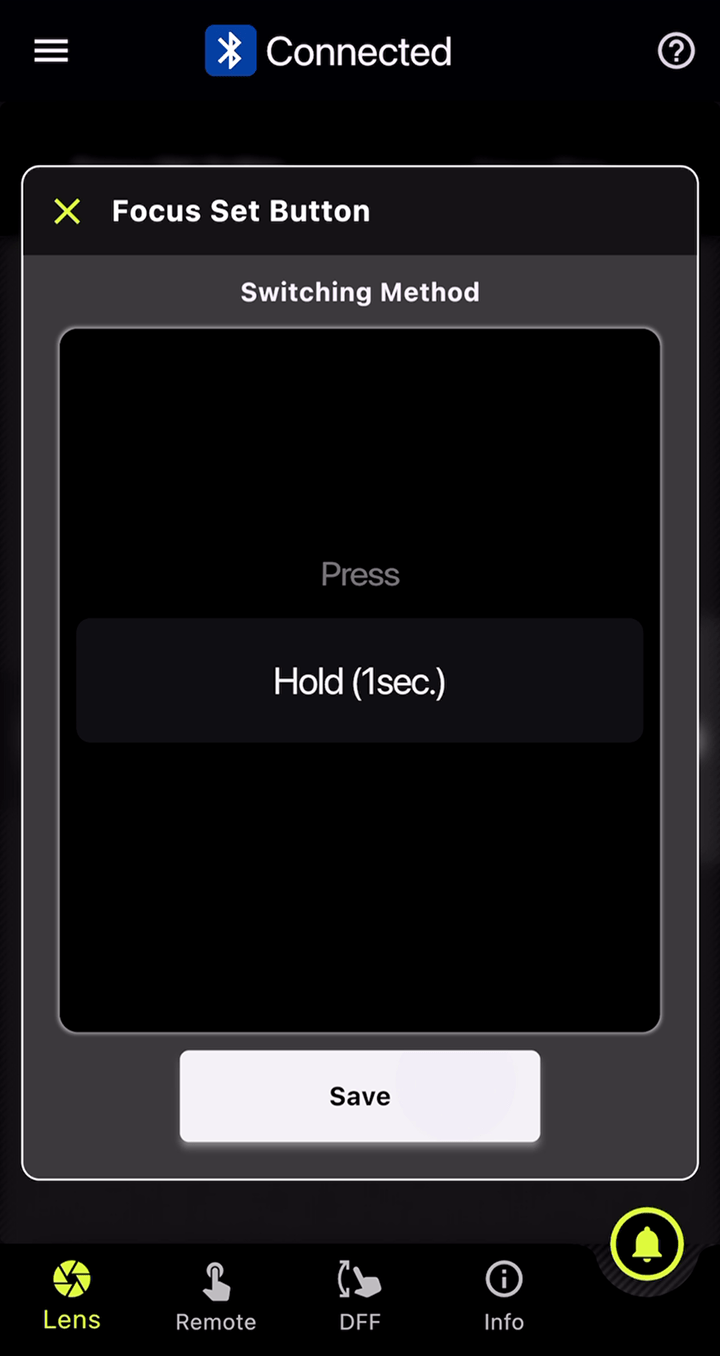
- You can also set “Full” range while pressing the button and “Limit” range while pressing the button.
- Select your preferred limited distance.
〈 Common Features 〉

〈 Supported Features by Lens 〉
Select the lens model and mount, then press “Confirm” to view the applicable TAMRON Lens Utility functions.
〈 Accessories 〉
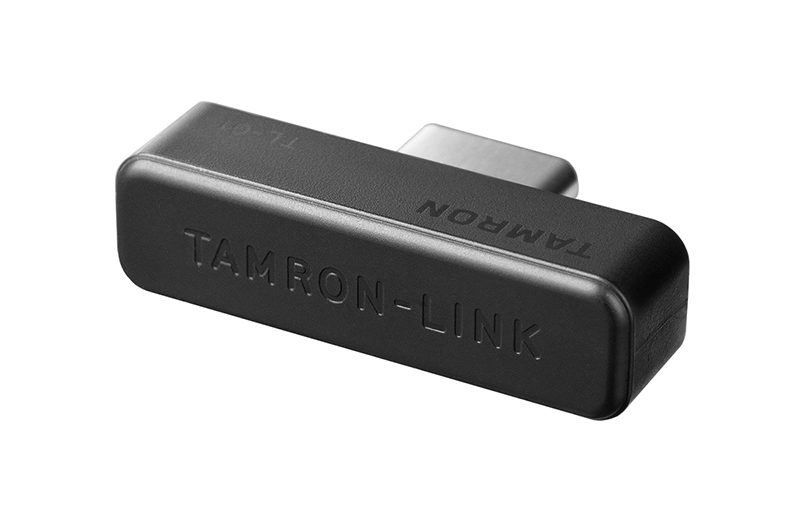
TAMRON-LINK
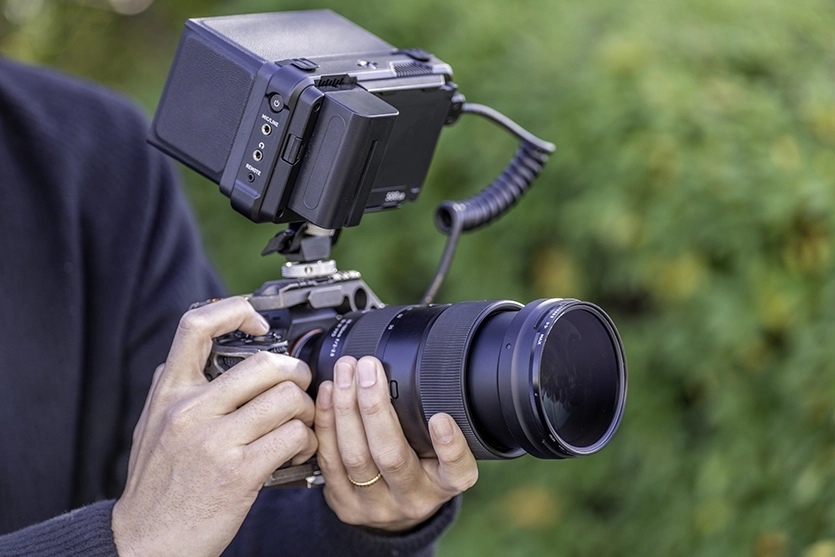
An accessory that enables wireless communication control of the TAMRON Lens Utility from your smartphone.
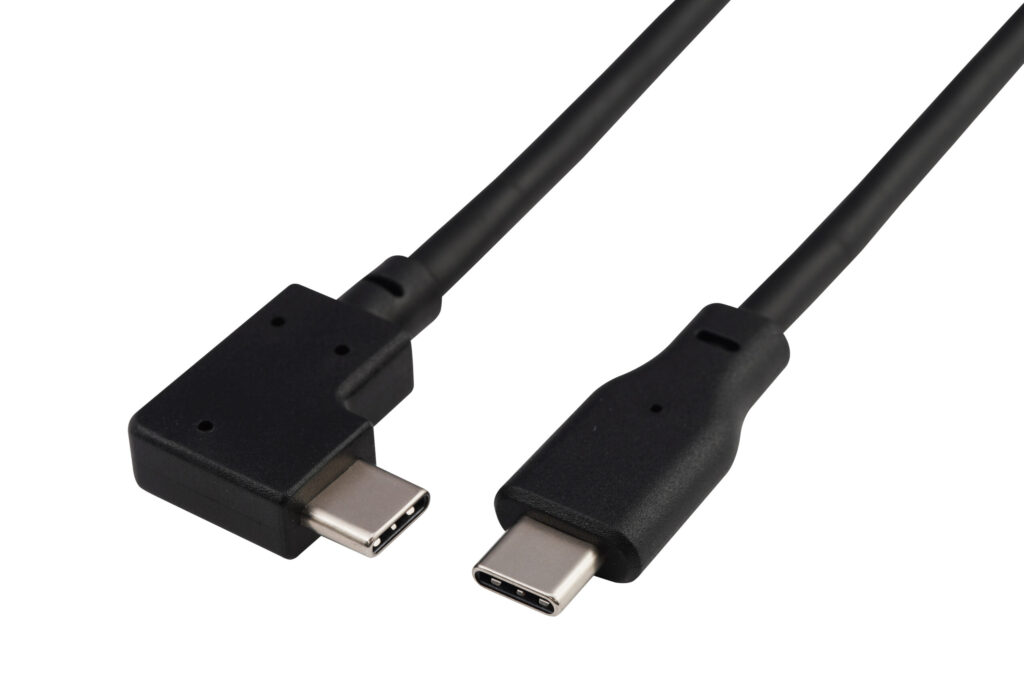
TAMRON Connection Cable
For a wired connection, please use the separately sold TAMRON Connection Cable USB Type-C to Type-C (Model CC-350). (Compatible with Android devices only)
〈 Articles / Videos 〉
The Ultimate Guide to Tamron Lens Utility Software
Whether you’re a seasoned photographer or just starting out, Tamron Lens Utility Software is a powerful tool designed to help you customize and enhance your lens’s performance.
Beginner’s Vlogging Guide: How to Vlog with a Mirrorless Camera and Recommended Lenses
Today, anyone can easily create and upload videos using their smartphone, and one of the most popular genres is “vlogging (vlogs).”
Video Shooting: Guide to Basic Types of Camerawork and Dramatic Effects
In this article, we’ll explain the basics of camerawork for video shooting to advanced applications in an easy-to-understand manner even for beginners.
Video Basics For Shooting Video With a Mirrorless Camera
This guide covers essential video basics, how to select the right lens, and practical tips for shooting with confidence.
Filmmaking Part 1: Composition, Direction, and Focus Work
We will introduce the composition and direction that you should think about before starting to shoot, based on actual examples.
Night Skies Photography with the TAMRON Lens Utility™ Astro Focus Lock
This guide shows you how Astro Focus Lock works, why Astrophotographers love it, and how to get sharper, more consistent night sky images.
Advanced Videography Techniques for Cinematic Filmmaking
Explore how to elevate production value through advanced lighting strategies, high-performance video lenses, image stabilization, wireless lens control, and post-production fundamentals.
Tamron Lens Utility Compatible Lens List
See the list of compatible lenses and functions >> Updated list coming soon. Use Supported Features by Lens section above.
Installation for Mac Computers
[For mac OS 15 or mac OS 26 Users]
* For mac OS 13 or mac OS 14 Users, please click here.
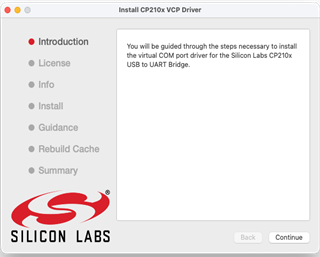
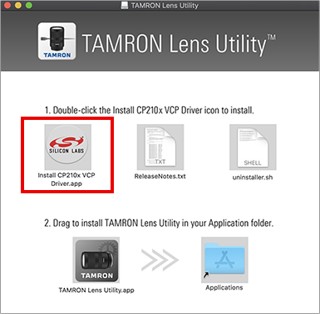
■ If you are using a Mac you must install the driver (Install CP210x VCP Driver.app) before installing the TAMRON Lens Utility.
- Download the installer program.
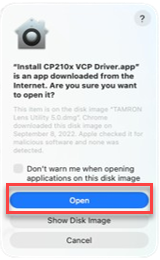
2. Double-click [Install CP210x VCP Driver.app] located inside the downloaded disk image.
3. Click “Open”.
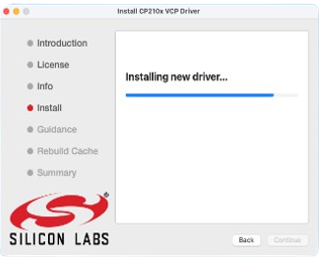
4. Follow the on-screen instructions to complete the installation.
5. The progress bar may appear to freeze mid-installation.
*This happens because macOS is waiting for security approval.
6. A pop-up message stating that “CP210xVCPDriver is trying to use new driver extensions” will appear.
This software requires access to driver extensions, which can be enabled in System Settings.
Please click “Open System Settings” to continue.
⚠ WARNING: Do NOT click the blue “OK” button. Clicking “OK” will cause the installation to hang for several minutes and may eventually fail.
For Reference:
If you accidentally click the “OK” button, please follow the steps below to enable the driver manually:
I. Open System Settings.
II. Select Login Items & Extensions.
III. Find “CP210xVCPDriver” in the list and click it.
IV. The screen shown in Step 7 below will be displayed.
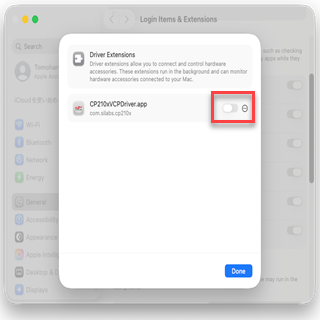
7. Toggle the switch for “CP210xVCP Driver.app” to the ON position.
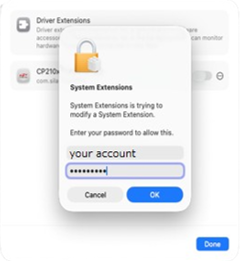
8. Enter your administrator password.
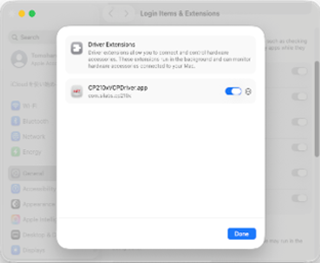
9. When the switch turns blue, it is enabled. Click “Done” at the bottom of the window.
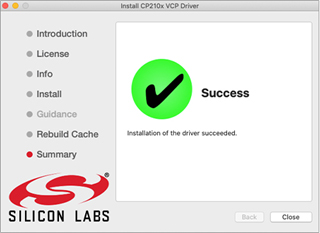
10. The following screen will be displayed when the installation is complete.
[For mac OS 13 or mac OS 14 Users]
If you are using a Mac you must install the driver (Install CP210x VCP Driver.app) before installing the TAMRON Lens Utility.
- Download the installer program
2. Double-click [Install CP210x VCP Driver.app] located inside the downloaded disk image to run the program and begin the driver installation.
3. Follow the on-screen instructions to complete the installation. If [Success] is displayed on the screen, the driver installation is complete
■ If the driver (Install CP210x VCP Driver.app) cannot be installed
*Please make sure that you are logged into the Mac with Administrator Privileges.
*It may be necessary to change your security settings.
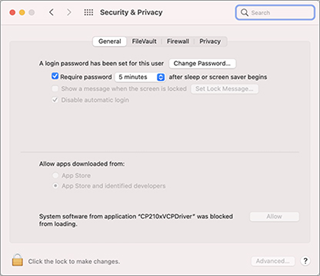
1. From the [Apple Menu], select [System Preferences], navigate to the [Security and Privacy] page, and select the [General] tab.
2. After clicking the [Lock Icon] to make changes, enter the administrator name and password.
3. Click the [Open Anyway] button underneath the [Allow apps downloaded from:] section.
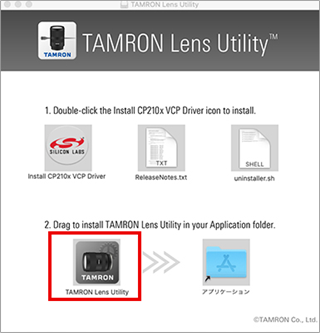
4. Drag & drop [TAMRON Lens Utility.app] located on the developed disk image into the Mac OS [Applications] folder. When the copy process ends, the installation is complete.
■ If you are unable to install the Software
Please make sure that you are logged into the Mac with Administrator Privileges.
Firmware Updates
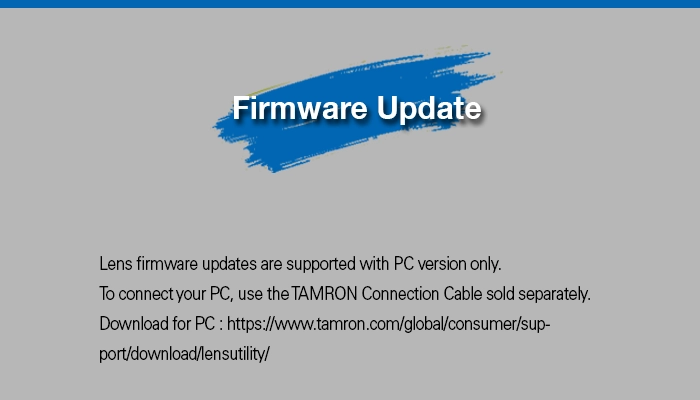
Update lens to the latest firmware version. You can update the firmware of the lens to the latest version by yourself.
* Please note that lens firmware cannot be updated via the camera or the smartphone. All firmware updates, for lenses that have a Connector Port, are available via the PC version of the TAMRON Lens Utility only.